かんたんな説明
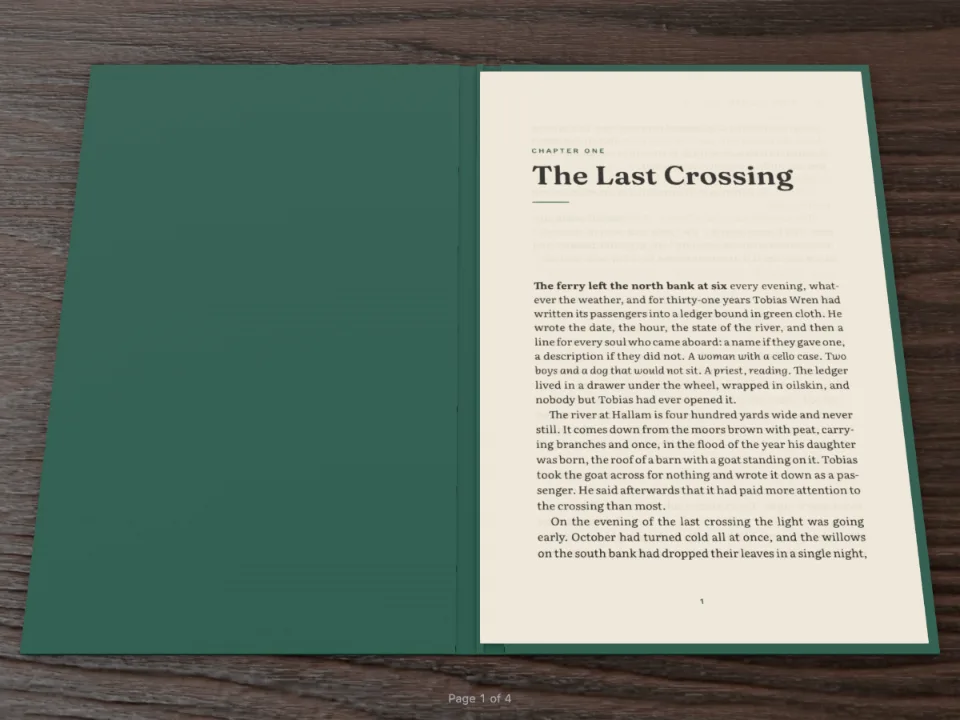
小さなポケット本を3Dで表示し、その横に操作パネルを置きます。紙、綴じ方、机、光を変えると、本は組み直されないまま、すぐに変わります。
できあがり
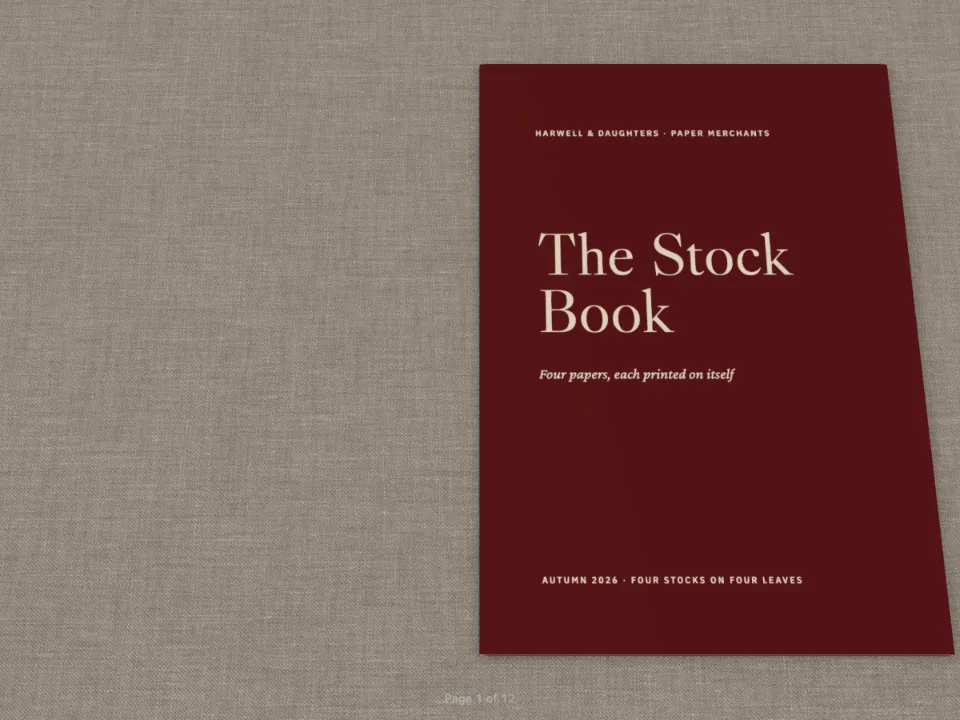
『Six Knots』は110 × 160 mmの仕上がりで10ページのポケット本です。これをFolioで開き、config.folioのすべての設定を並べたパネルの横に置きます。紙の銘柄を選ぶと、丁の色、表面、こしが変わります。綴じをペーパーバックからハードカバーに切り替えると、本文のまわりにケースができます。印刷した表紙の代わりにケースを選び、布や革の素材、机、光、傾きを選べます。本は一度だけ組みます。変更はすべてsetAppearanceでビューアーに渡るので、行は1本も動かず、ページも描き直されません。設定はフォームの下に、config.folioへ貼り付けるコードとして表示されます。
このレシピが答える質問
- 入稿の前に、本の綴じ、表紙、用紙、照明をプレビューするには?
- 文書を、読者が手でページをめくる3Dの本として表示するには?
手短な答え
const book = createFolioFromDocument(document.getElementById('folio'), doc, {
  // The look starts from doc.config.folio; setAppearance replaces it on every change.
  appearance: { textureBaseUrl: 'https://postext.dev/folio/textures' },
  onChange: ({ pages }) => kitStatus(`${doc.pages.length} pages · open at `
    + pages.map((i) => i + 1).join('–')),
});
function update() {
  const folio = folioOf();
  // Only the appearance changes: the pages keep their paintings, nothing is laid out again.
  book.setAppearance({ folio });
  show('grammage-out', `${folio.paper.grammage} g/m²`);
  show('intensity-out', folio.lighting.intensity.toFixed(2));
  show('tilt-out', `${folio.tilt}°`);
  document.getElementById('folio-json').textContent = `folio: ${JSON.stringify(folio, null, 2)}`;
}
form.addEventListener('input', update);
// A stock sets its own weight: picking one moves the weight slider to the stock's.
const WEIGHTS = { uncoated: 90, bookWove: 80, coatedMatte: 115, coatedSilk: 115,
  coatedGloss: 115, bible: 40, newsprint: 48, cardStock: 250 };
form.elements['paper.type'].addEventListener('change', (event) => {
  form.elements['paper.grammage'].value = WEIGHTS[event.target.value];
  update();
});
document.getElementById('reset-view').addEventListener('click', () => book.resetView());
update();
材料
- 機能
- 用紙、綴じ、机、照明(Folio)3Dの本のビューアー(Folio)見出しスタイルデザインした章扉見出しの属性段落スタイルページの役割ごとの柱セマンティックカラーパレット見開きの余白キャンバス上のページ
- 種類
- Source Serif 4, Outfit (SIL OFL 1.1)
- 素材
- なし:画像はすべてコードで描画
作り方
#1 · フィールドに設定のパスで名前を付ける
const form = document.getElementById('controls');
const hex = (value) => ({ hex: value, model: 'hex' });
function folioOf() { // 'paper.grammage' → { paper: { grammage } }, typed by the input
  const folio = {};
  for (const el of form.elements) {
    if (!el.name || el.type === 'button' || el.tagName === 'OUTPUT') continue;
    const value = el.type === 'checkbox' ? el.checked : el.type === 'range' ? Number(el.value)
      : el.type === 'color' ? hex(el.value) : el.value;
    const [group, key] = el.name.split('.');
    if (key) (folio[group] ??= {})[key] = value;
    else folio[group] = value;
  }
  return folio;
}
const show = (name, value) => { form.elements[name].value = value; };
フォームの各フィールドには、config.folioの中のパスで名前を付けます(paper.grammage、binding.cover、lighting.environment)。こうすると、1つのループでフォームをビューアーが受け取るオブジェクトに変えられます。スライダーからは数値、チェックボックスからは真偽値、カラーピッカーからは{ hex, model }の色を取ります。CodePenのサンプルが文書を組むときには、同じオブジェクトがその文書自身のconfig.folioになるので、Sandboxはフォームの初期状態のまま本を開きます。
#2 · ビューアーが板としてめくれる表紙
const field = { kind: 'box', id: 'field', style: { backgroundColor: col('brick') },
  placement: { ...at('bleed', 'top-left'), size: { width: 'fill', height: mm(TRIM_H) } } };
const flush = { numbered: false, span: 'page', footer: { elements: [] },
  margins: { top: mm(0), bottom: mm(0), left: mm(0), right: mm(0) } };
const cover = (id, title, extra = {}) => ({ id, ...flush, ...extra, advancedDesign: {
  enabled: true, minHeight: mm(TRIM_H), slot: { elements: [field, ...title] } } });
const headingStyles = [
  cover('cover', [
    text('title', '{titleText}', { fontFamily: SANS, fontWeight: 700, fontSize: pt(40),
      lineHeight: 0.92, color: col('cream') },
    { ...at('page', 'top-left', INNER, 30), size: { width: mm(80) } }),
    text('strap', '{attr.strap}', { fontFamily: 'Source Serif 4', italic: true,
      fontSize: pt(11), lineHeight: 1.3, color: col('cream') },
    { ...at('#title', 'below', 0, 6), size: { width: mm(72) } }),
    text('author', '{author}', caps(7, col('cream')), at('page', 'bottom-left', INNER, -16)),
  ]),
  cover('back', [
    text('strap', '{attr.strap}', { fontFamily: 'Source Serif 4', italic: true,
      fontSize: pt(11), lineHeight: 1.3, color: col('cream'), align: 'center' },
    { ...at('page', 'center', 0, 0), size: { width: mm(76) } }),
  ], { breakBefore: { enabled: true, parity: 'even' } }), // the back: always a verso
];
binding.cover: 'pages'では、最初のページが表の板になり、最後のページは偶数ページに来れば裏の板になります。裏表紙の見出しスタイルは偶数ページへ改ページするので、本はかならず偶数ページで終わり、両方の表紙がめくれます。フォームを「A case round the pages」に切り替えると、同じ2ページは布装のケースの中で、ふつうの丁としてめくれます。
#3 · その場で本の見た目を変える
コードは前の手短な答えにあります。setAppearance({ folio })は文書の設定を置き換え、紙の厚さとこし、ケース、机のマップ、光といったシーンを描き直します。ページは描画済みの画像を保つので、変更は次のフレームに反映されます。紙の銘柄はそれぞれ決まった坪量があるため、銘柄を選ぶと坪量のスライダーが動きます。読者が右ドラッグで本の周りを回ったあとは、resetView()でカメラを戻します。
レシピの全体
// ═══ Postext Cookbook · Nº 103 · A bench for the Folio viewer's settings ═══════════════
// https://postext.dev/en/cookbook/folio-settings-bench
// Code: MIT · Text: original (CC BY 4.0) · Pictures: none
// Fonts: Source Serif 4, Outfit (SIL OFL 1.1) · Needs postext ≥ 1.26.0
//
// A pocket book of knots, laid out once and opened in postext-folio next to a form of every
// folio setting: paper, binding, covers, desk, light and tilt. Each change goes to the viewer
// with setAppearance, so the book is redrawn in place and no page is laid out or painted
// again. The settings as code sit under the form, ready to paste into config.folio.
import { buildDocumentWithFonts, renderPageToCanvas } from 'https://esm.sh/postext';
import { createFolioFromDocument } from 'https://esm.sh/postext-folio';

const LANG = 'en'; // @lang: the language of the sample document ('en' | 'es')
const RECIPE = 'folio-settings-bench';

// ─── 1 · Design ─────────────────────────────────────────────────────────────
// #region palette: brick red for the covers and the knot numbers, a warm ink for the text
const palette = {
  ink: '#24211f',
  brick: '#9a3b2e', // the cover field, kickers and folios
  cream: '#f6efe2', // type on the covers
  muted: '#6f6860',
};
const col = (id) => ({ hex: palette[id], model: 'hex', paletteId: id });
const colorPalette = [
  ...Object.entries(palette).map(([id, hex]) => ({ id, name: id, value: { hex, model: 'hex' } })),
  { id: 'main-color', name: 'accent (defaults)', value: { hex: palette.brick, model: 'hex' } },
];
// #endregion
const [TRIM_W, TRIM_H, TOP, BOTTOM, INNER, OUTER] = [110, 160, 15, 17, 14, 12]; // mm: a pocket
const LEAD = 12.4; // pt
const SANS = 'Outfit';
const at = (to, edge, x = 0, y = 0) => ({ anchor: { to, edge }, offset: { x: mm(x), y: mm(y) } });
const text = (id, content, look, placement) => ({ kind: 'text', id, content, overflow: 'wrap',
  align: 'left', placement, ...look });
const caps = (size, color) => ({ fontFamily: SANS, fontSize: pt(size), fontWeight: 600,
  letterSpacing: pt(size * 0.16), textTransform: 'uppercase', color });

// #region covers: a full-page colour field on page 1 and on the last page
const field = { kind: 'box', id: 'field', style: { backgroundColor: col('brick') },
  placement: { ...at('bleed', 'top-left'), size: { width: 'fill', height: mm(TRIM_H) } } };
const flush = { numbered: false, span: 'page', footer: { elements: [] },
  margins: { top: mm(0), bottom: mm(0), left: mm(0), right: mm(0) } };
const cover = (id, title, extra = {}) => ({ id, ...flush, ...extra, advancedDesign: {
  enabled: true, minHeight: mm(TRIM_H), slot: { elements: [field, ...title] } } });
const headingStyles = [
  cover('cover', [
    text('title', '{titleText}', { fontFamily: SANS, fontWeight: 700, fontSize: pt(40),
<section id="bench">
  <div id="folio" role="region" aria-label="The book in 3D"></div>
  <form id="controls" aria-label="Folio settings">
    <fieldset>
      <legend>Paper</legend>
      <label>Stock <select name="paper.type">
        <option value="uncoated">Uncoated</option><option value="bookWove" selected>Book wove</option>
        <option value="coatedMatte">Coated matte</option><option value="coatedSilk">Coated silk</option>
        <option value="coatedGloss">Coated gloss</option><option value="bible">Bible</option>
        <option value="newsprint">Newsprint</option><option value="cardStock">Card</option>
      </select></label>
      <label>Weight <output name="grammage-out">80 g/m²</output>
        <input type="range" name="paper.grammage" min="30" max="300" step="5" value="80"></label>
      <label>Texture <select name="paper.texture">
        <option value="auto" selected>The stock’s</option><option value="smooth">Smooth</option>
        <option value="vellum">Vellum</option><option value="wove">Wove</option>
        <option value="laid">Laid</option><option value="linen">Linen</option>
        <option value="felt">Felt</option>
      </select></label>
      <label class="check"><input type="checkbox" name="paper.showThrough" checked> Show-through</label>
    </fieldset>
    <fieldset>
      <legend>Binding</legend>
      <label>Type <select name="binding.type">
        <option value="hardcover">Hardcover</option><option value="paperback" selected>Paperback</option>
        <option value="sewn">Sewn softcover</option><option value="layflat">Lay-flat</option>
        <option value="saddleStitch">Saddle stitch</option>
      </select></label>
      <label>Covers <select name="binding.cover">
        <option value="pages" selected>The first and last pages</option>
        <option value="case">A case round the pages</option>
      </select></label>
      <label>Material <select name="binding.coverMaterial">
        <option value="auto" selected>The binding’s</option><option value="cloth">Cloth</option>
        <option value="paper">Paper</option><option value="leather">Leather</option>
      </select></label>
      <label>Colour <input type="color" name="binding.coverColor" value="#9a3b2e"></label>
    </fieldset>
    <fieldset>
      <legend>Desk and light</legend>
      <label>Surface <select name="surface.type">
        <option value="oak" selected>Oak</option><option value="walnut">Walnut</option>
        <option value="linen">Linen</option><option value="felt">Felt</option>
        <option value="leather">Leather</option><option value="marble">Marble</option>
        <option value="plain">Plain</option><option value="none">None</option>
      </select></label>
      <label>Light <select name="lighting.environment">
        <option value="studio">Studio</option><option value="daylight" selected>Daylight</option>
/* The bench: the book on the left, the settings on the right, the flat pages below. */
#bench {
  display: grid; grid-template-columns: minmax(0, 1fr) 300px; gap: 16px;
  max-width: 1320px; margin: 0 auto; padding: 16px; box-sizing: border-box;
  color: #c9ccd3; font: 13px/1.4 system-ui, sans-serif;
}
#folio { height: min(80vh, 760px); min-height: 420px; }
#controls { display: grid; gap: 12px; align-content: start; }
#controls fieldset {
  display: grid; gap: 8px; margin: 0; padding: 10px 12px 12px;
  border: 1px solid #2a2e36; border-radius: 6px;
}
#controls legend {
  padding: 0 4px; color: #f0b35a; font-weight: 600; font-size: 11px;
  letter-spacing: .12em; text-transform: uppercase;
}
#controls label { display: grid; grid-template-columns: 1fr auto; gap: 4px 8px; align-items: center; }
#controls label > select, #controls label > input[type="range"] { grid-column: 1 / -1; }
#controls label.check { display: flex; gap: 8px; }
#controls select, #controls button {
  min-height: 32px; padding: 4px 8px; border: 1px solid #3a3f49; border-radius: 4px;
  background: #1a1d23; color: #eceef2; font: inherit;
}
#controls input[type="color"] {
  width: 44px; height: 32px; padding: 0; border: 1px solid #3a3f49; border-radius: 4px;
  background: none;
}
#controls input[type="range"] { accent-color: #f0b35a; }
#controls output { color: #8d9199; font-variant-numeric: tabular-nums; }
#controls button { cursor: pointer; }
#controls button:hover, #controls button:focus-visible { border-color: #f0b35a; }
#folio-json {
  margin: 0; padding: 10px 12px; max-height: 220px; overflow: auto; border-radius: 6px;
  background: #15171c; color: #aeb3bd; font: 11.5px/1.45 ui-monospace, Menlo, monospace;
}
@media (max-width: 860px) {
  #bench { grid-template-columns: minmax(0, 1fr); }
  #folio { height: 70vh; }
}
組み立てたscript.jsはそのまま動きます。任意のページのモジュールスクリプトに貼り付けるか、レシピをCodePenで開いてください。 GitHub上のレシピのフォルダー ↗ (新しいタブで開きます)
アレンジ
#布装ケースのハードカバーから始める
index.htmlでフォームの初期値を変えます。文書とSandboxはそれに従います。
-        <option value="hardcover">Hardcover</option><option value="paperback" selected>Paperback</option>
+ <option value="hardcover" selected>Hardcover</option><option value="paperback">Paperback</option>#1冊の本、見た目は設定に
机の上の本は、フォームを使わずに同じ設定をconfig.folioへ一度だけ書きます。紙見本帳は丁ごとに違う紙を設定します。
よくあるつまずき
つまずき
Folioビューアーはコンテナーの大きさに合わせる
createFolioFromDocumentは、渡した要素の中に本を収め、余白にボタンとページ数を置きます。高さのない要素(通常フローの空のdiv)では何も表示されないので、CSSで高さを与えてください。 3Dの本のビューアー(Folio) →
つまずき
cover: 'pages'で裏表紙を作るにはページ数が偶数でなければならない
binding.coverを'pages'にすると、最初のページが表表紙としてめくれますが、最後のページが裏表紙としてめくれるのは、それが偶数ページに来るときだけです。ページ数が奇数だと、表表紙はあるのに裏表紙のない本になります。ページを足して偶数にするか、ケース装のままにしてください。 用紙、綴じ、机、照明(Folio) →
クレジット
- 本文
- 書き下ろしの文章, CC BY 4.0
- フォント
- Source Serif 4 (SIL OFL 1.1) · Outfit (SIL OFL 1.1)