Chapter 13 · Part III · In practice
Composed-page books
A walk through the Sandbox with a school textbook made of composed pages: build a page template, fill it from the Markdown, label a map, translate the page, fix what does not fit and select on the page and in the text
In short
This page teaches, step by step, how to make a page of a school textbook in the Sandbox, the page with a title band, a text and coloured boxes. You start from a finished example book and add one more page to it. First you draw the page as a template, then you pour the text into it from the Markdown, then you name the places on a map and translate the page into another language. At the end you see what to do when a text is too long for its box and how to jump between the page and its text.
You build one page of a textbook from a template, fill it with text from the Markdown, label a map, translate the page and fix what does not fit.
A page of a school textbook is a set of boxes: a title band, a text, a box for a definition, a box for an activity, a map. Postext lays such a page out from a page template that holds the boxes (its frames), and the Markdown only says which words go in which frame. This page walks through the whole job in the Sandbox, on a book that already exists, and adds one page to it. The reference pages say what each field and each line of Markdown does; here you do each thing once, in order, and see what it changes: Composed pages for the Markdown, Configuration › Composed pages for the template, Sandbox: composed pages for the screens.
You need a browser and nothing else. Every step happens in the Sandbox, and what you change stays in your browser.
#1. Open the book
The book is Our river, a unit of a Year 3 textbook that the Cookbook publishes as recipe Nº 156. The river, the towns and the pictures are invented for it. It has nine pages, with a painted map across two facing ones, and it comes in Spanish, Catalan and English.
Open it in the Sandbox. The first visit adds it to Books as one of your own books, so you can change it freely; with lang=es or lang=ca in the link you get the other editions. If you come back to the same link later, the Sandbox asks whether to open your copy or to replace it with the published one.
Two things to know before you touch anything:
- The bar above the preview has a switch with Content and Design. In Content mode you edit words, in the Text panel or on the page. In Design mode you edit page templates and styles, and the text is read only. Alt+Shift+M (⌥⇧M on a Mac) switches between them.
- The Text panel shows one chapter of Markdown. Each composed page is a block that starts with
::::page{template="…"}and ends with four colons. Click some words on a page in the preview and the caret goes to them in the Markdown.
#2. Make a page template
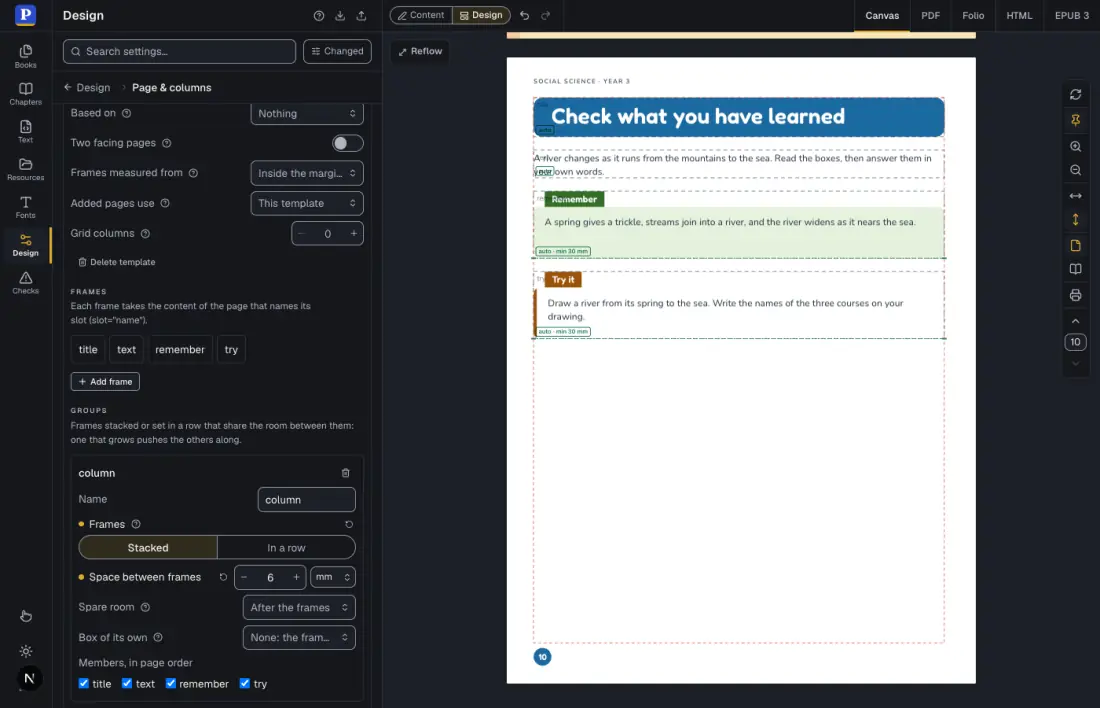
The new page will be a review page: a title band, a short text under it and two boxes, one to recall what was learned and one to try. It needs a template with four frames.
- Switch to Design and open the Design panel on the left. Choose Page & columns, then Page templates. The list shows each template of the book with a drawing of its frames.
- Press New. A template called New template opens. Give it the ID
review(what the Markdown will name) and the NameReview page(what this panel shows). The ID takes lowercase letters, digits and dashes. - The template starts with one frame,
text, that Takes the page's loose text. Make it the title band: Name (slot):title; Box style:portada, the blue band the book already uses for its titles; switch Takes the page's loose text off; Takes the first heading: Level 1, so that this frame receives the page's first#heading. - Press Add frame. The new frame opens below the list of frames. Name (slot):
text, and switch Takes the page's loose text on: whatever the page writes outside a frame goes here. - Add a frame. Name (slot):
remember. Box style:dato-campo, a green box with a tab. Smallest height: 30 mm, so that the box keeps a good size when its text is short. - Add a last frame. Name (slot):
try. Box style:actividad-sol. Smallest height: 30 mm. - In
text,rememberandtryset Width to Up to the edge and Height to Its content: they then fill the width of the page and are as tall as their text. - Under Groups press Add group. Name it
column, leave it Stacked and set Space between frames to 6 mm. Under Members, in page order tick the four frames. The group keeps them in the order of the list of frames, so the title is first. A group lays its frames one under the other and moves the ones below when a frame grows, so a longer text in the first box pushes the second box down instead of running over it.
 (opens in a new tab)
The template has no words in it. Nothing you set says what the title is or what the boxes contain; the box style gives a frame its look, the group its order. There are other ways to the same template. In Design mode you can draw a frame on an empty spot of a composed page with the mouse and move or resize the frames you have (see Sandbox: composed pages); Duplicate copies a template to change it; Save layout as template turns a composed page you like into a new template.
#3. Fill the page from the Markdown
- Switch to Content, open the Text panel and press Ctrl+End (Cmd+↓ on a Mac) to go to the end of the chapter.
- Press Composed page in the toolbar of the Text panel. A picker lists the page templates of the book, each drawn as its empty frames. Choose Review page.
- The Sandbox writes the page for you, one empty frame per slot, and selects the word
titleof the heading. Type the title over it.
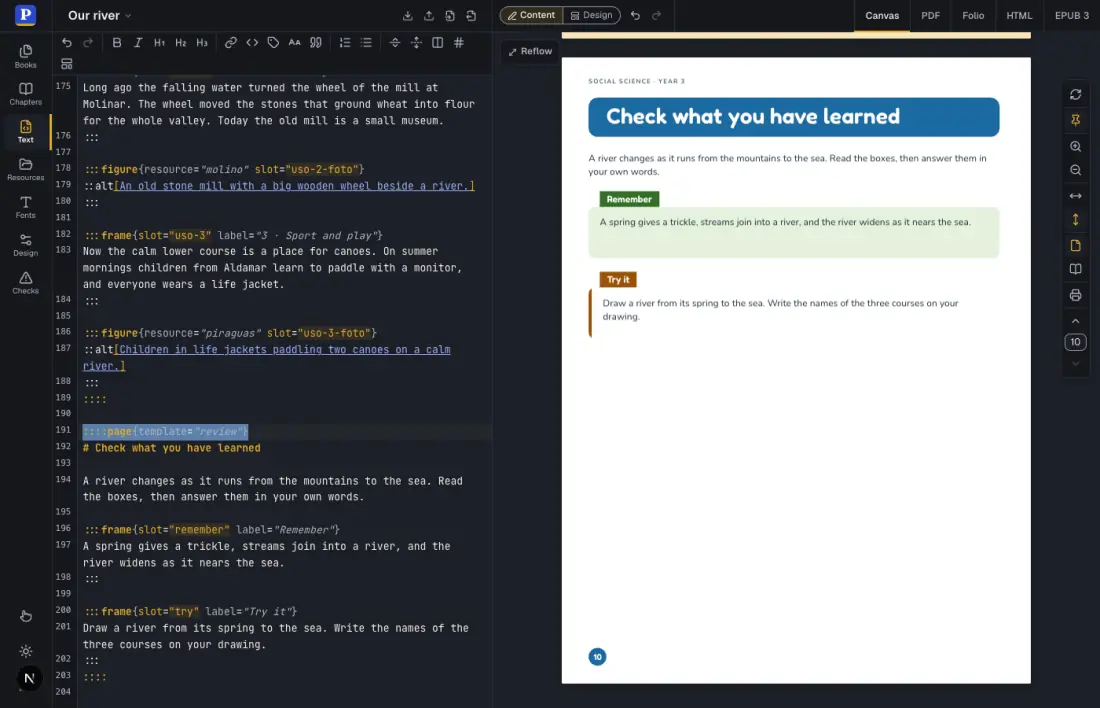
::::page{template="review"}
# Check what you have learned

A river changes as it runs from the mountains to the sea. Read the boxes, then answer them in your own words.

:::frame{slot="remember" label="Remember"}
A spring gives a trickle, streams join into a river, and the river widens as it nears the sea.
:::

:::frame{slot="try" label="Try it"}
Draw a river from its spring to the sea. Write the names of the three courses on your drawing.
:::
::::
The heading goes to the frame that takes level 1, the paragraph that follows it to the frame that takes the loose text, and each :::frame to the frame of its slot. The label is the words on the tab of a box. The page is on the canvas as page 10, after the nine of the unit: a composed page always starts a new page.
 (opens in a new tab)
Notice what the Markdown does not say: no position, no size, no colour. Those belong to the template, and the same Markdown laid out with another template would look different.
#4. Label the map
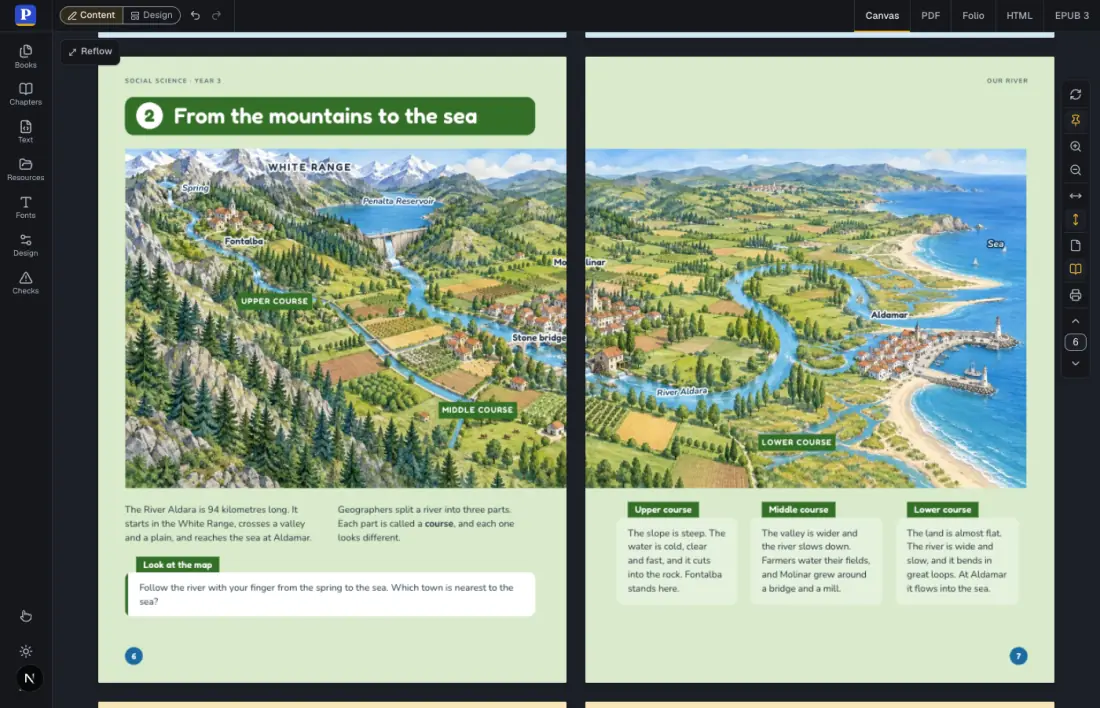
Pages 6 and 7 hold a painted map across the spread. Its words are not part of the picture. Each name on it is a line of the Markdown, inside the :::figure of the map:
:::figure{resource="mapa" slot="mapa"}
::label[Spring]{at="nacimiento"}
::label[Molinar]{at="molinar"}
::label[Lower course]{at="bajo"}
:::
at names an anchor: a point of the picture, defined once in the picture's resource and shared by every language. To add the stone bridge of Molinar:
- In the Text panel go to the map's figure (search for
at="bajo") and add a line under the last label:::label[Stone bridge]{at="bridge"}. - Open Checks. The list has a Label at an unknown anchor entry for page 6: the picture has no anchor called
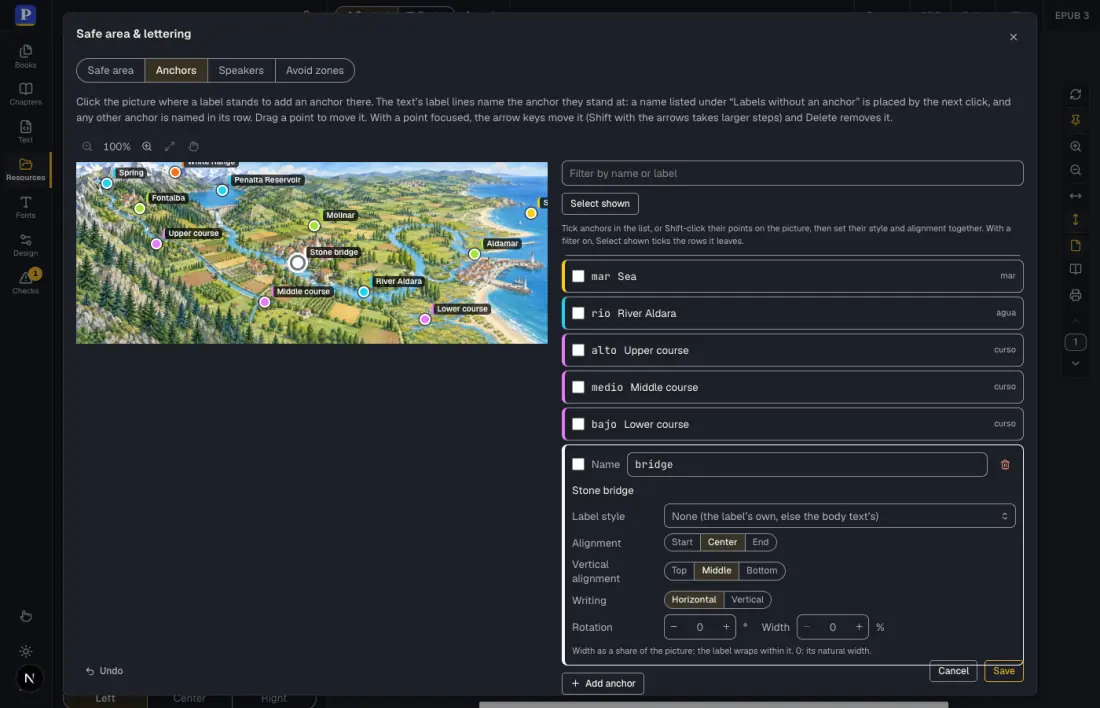
bridge. Press the pin button on the entry, Place the anchor bridge on the picture. - A dialog shows the map with the anchors it has. The name
bridgeis picked under Labels without an anchor. Click the picture where the bridge stands. - Set the Label style of the new anchor to
pueblo, the style of the towns, and press Save.
 (opens in a new tab)
 (opens in a new tab)
The word Stone bridge is Markdown; the point is part of the picture. When you translate the page, the same anchor gets another word.
#5. Translate the page
A translation is the same template with other words. The Sandbox has two ways to hold it. A book can carry several languages at once, as a .postext file with an edition for each, and then the bar above the canvas switches between them and the Checks panel reads all of them (see Editions of a book). The simpler way, which needs no file, is a copy of the book in the other language:
- Open Books, press ⋯ on your book and choose Duplicate, or press New and choose Copy of the open book. Open the copy. It has the same name as the original: give it another one with Rename… in the same menu.
- In the Design panel open Writing system and, under Language and direction, set the Document language. Hyphenation, quotation marks and the words the engine writes itself (such as Continued at the cut of a box) follow it.
- In the Text panel translate the words and leave the rest.
| You translate | You leave as it is |
|---|---|
| The text of headings, paragraphs and lists | The four colons, the word page and the template="…" of the fence |
The label="…" of a frame | The slot="…" of a frame |
The text in the brackets of ::label[…], ::alt[…] and ::caption[…] | The at="…" of a label and the resource="…" of a figure |
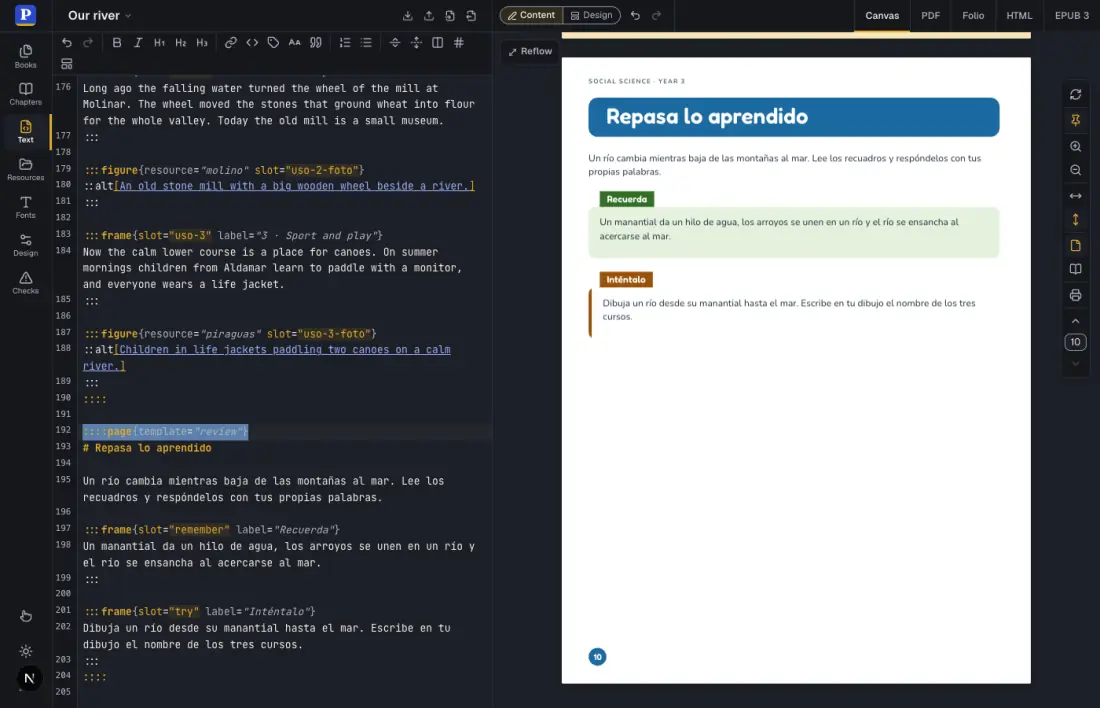
The pictures, the anchors, the boxes and their colours come along with the copy and need no work. A copy of the review page in Spanish looks like this:
::::page{template="review"}
# Repasa lo aprendido

Un río cambia mientras baja de las montañas al mar. Lee los recuadros y respóndelos con tus propias palabras.

:::frame{slot="remember" label="Recuerda"}
Un manantial da un hilo de agua, los arroyos se unen en un río y el río se ensancha al acercarse al mar.
:::

:::frame{slot="try" label="Inténtalo"}
Dibuja un río desde su manantial hasta el mar. Escribe en tu dibujo el nombre de los tres cursos.
:::
:::: (opens in a new tab)
#6. Review what does not fit
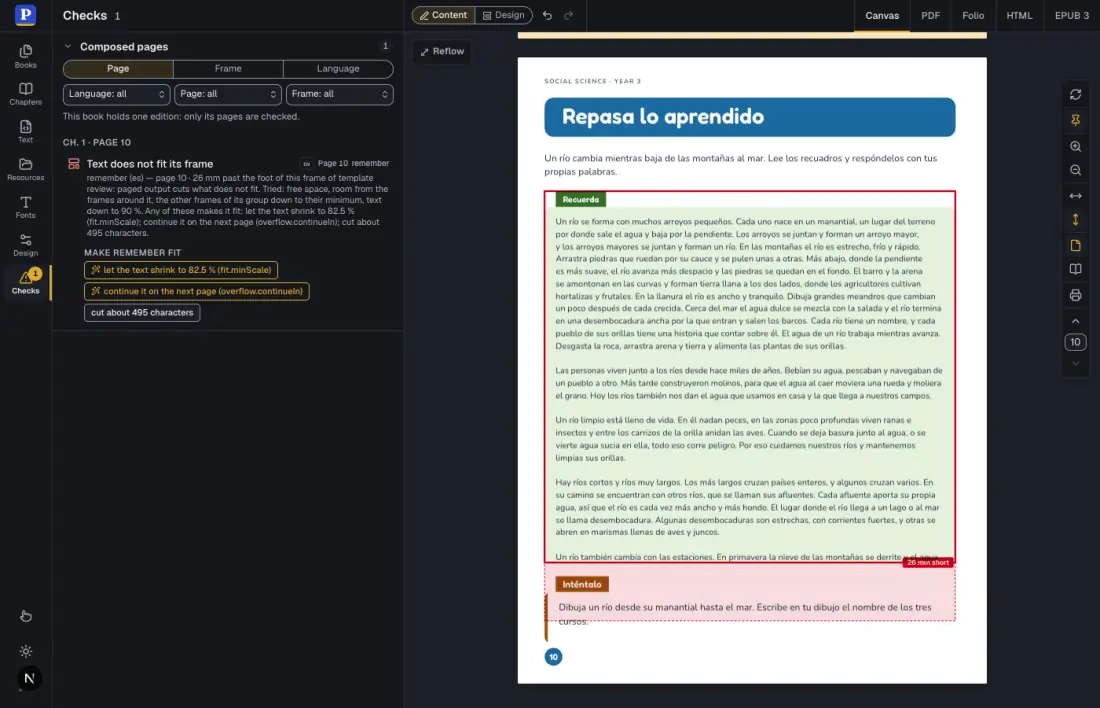
Words differ in length from one language to the next, and a box that held the English text may not hold the Spanish one. The Checks panel finds those frames. To see one, paste three or four more paragraphs of any text into the remember frame of the translated page, so that it holds more than the page has room for.
The page now shows the frame outlined in red with a band under its foot that says how much is missing (26 mm short). In Checks, under Composed pages, the entry Text does not fit its frame says what the layout tried before giving up (more room from the frames around, then smaller text) and lists the ways out as buttons:
- let the text shrink to 82.5 % lets the text of this frame go down to that size. It suits a few lines too many.
- continue it on the next page sends what does not fit to a page added after this one. It suits a longer text.
- cut about 495 characters changes nothing. It selects the text of the frame and tells you how much to cut.
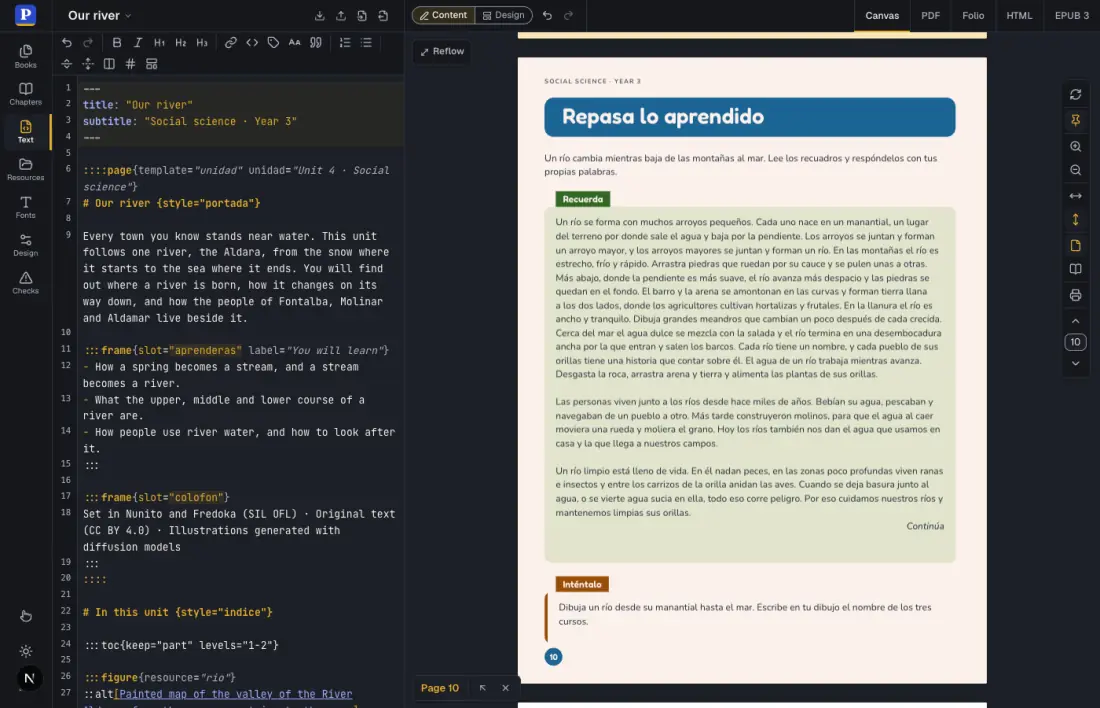
A button that changes the template (every page set with it) asks first, naming the setting. Press Change it. The page is laid out again, the box ends with the word of the cut (Continúa) and the rest runs on at the head of an added page. Cmd/Ctrl+Z takes the change back. Reflow, in the bar above the canvas, opens What moved and why: the frames whose size or place the layout changed to fit their content, with the reason in words.
 (opens in a new tab)
#7. Select on the page and in the text
The page and its Markdown follow each other.
- From the page to the text. Click on the words of a frame: the caret goes to that paragraph in the Text panel, and a path under the preview names where you are (Page 10 › column › try › paragraph 1). In Design mode the same click picks the frame for the template editor instead.
- From the text to the page. Put the caret in a paragraph and the frame that holds it and the paragraph itself are outlined on the page, and the same path says where they are.
- From a check. Click an entry of the Checks panel and the Sandbox takes you to the page, picks the frame and puts the caret at its text. In a book with several editions it switches to the edition that has the problem.
- On the tab of a box. Double-click it and a field opens over it for the
label. Enter keeps the change and Esc leaves it.
 (opens in a new tab)
#Where to go next
- Moving a book to composed pages: a book that keeps the text of its pages in its styles can have it moved into the Markdown.
- Composed pages: every attribute of the page fence, the figure and the label lines, how a page is set and every warning with its fix.
- Configuration › Composed pages: every field of a template, a frame and a group, inheritance and spreads.
- Sandbox: composed pages: the screens for templates, frame styles, checks in every edition and fixes.